\r\n --key \r\n```\r\n\r\nYou can find your Smithery key in the [Smithery.ai webpage](https://smithery.ai/server/@upstash/context7-mcp).\r\n\r\n
\r\n\r\nInstalling via Smithery
\r\n\r\nTo install Context7 MCP Server for any client automatically via [Smithery](https://smithery.ai/server/@upstash/context7-mcp):\r\n\r\n```bash\r\nnpx -y @smithery/cli@latest install @upstash/context7-mcp --client\r\n
\r\n\r\nInstall in Cursor
\r\n\r\nGo to: `Settings` -> `Cursor Settings` -> `MCP` -> `Add new global MCP server`\r\n\r\nPasting the following configuration into your Cursor `~/.cursor/mcp.json` file is the recommended approach. You may also install in a specific project by creating `.cursor/mcp.json` in your project folder. See [Cursor MCP docs](https://docs.cursor.com/context/model-context-protocol) for more info.\r\n\r\n> Since Cursor 1.0, you can click the install button below for instant one-click installation.\r\n\r\n#### Cursor Remote Server Connection\r\n\r\n[](https://cursor.com/install-mcp?name=context7&config=eyJ1cmwiOiJodHRwczovL21jcC5jb250ZXh0Ny5jb20vbWNwIn0%3D)\r\n\r\n```json\r\n{\r\n \"mcpServers\": {\r\n \"context7\": {\r\n \"url\": \"https://mcp.context7.com/mcp\"\r\n }\r\n }\r\n}\r\n```\r\n\r\n#### Cursor Local Server Connection\r\n\r\n[](https://cursor.com/install-mcp?name=context7&config=eyJjb21tYW5kIjoibnB4IC15IEB1cHN0YXNoL2NvbnRleHQ3LW1jcCJ9)\r\n\r\n```json\r\n{\r\n \"mcpServers\": {\r\n \"context7\": {\r\n \"command\": \"npx\",\r\n \"args\": [\"-y\", \"@upstash/context7-mcp\"]\r\n }\r\n }\r\n}\r\n```\r\n\r\n\r\n
\r\n\r\nAlternative: Use Bun
\r\n\r\n[](https://cursor.com/install-mcp?name=context7&config=eyJjb21tYW5kIjoiYnVueCAteSBAdXBzdGFzaC9jb250ZXh0Ny1tY3AifQ%3D%3D)\r\n\r\n```json\r\n{\r\n \"mcpServers\": {\r\n \"context7\": {\r\n \"command\": \"bunx\",\r\n \"args\": [\"-y\", \"@upstash/context7-mcp\"]\r\n }\r\n }\r\n}\r\n```\r\n\r\n\r\n
\r\n\r\nAlternative: Use Deno
\r\n\r\n[](https://cursor.com/install-mcp?name=context7&config=eyJjb21tYW5kIjoiZGVubyBydW4gLS1hbGxvdy1lbnYgLS1hbGxvdy1uZXQgbnBtOkB1cHN0YXNoL2NvbnRleHQ3LW1jcCJ9)\r\n\r\n```json\r\n{\r\n \"mcpServers\": {\r\n \"context7\": {\r\n \"command\": \"deno\",\r\n \"args\": [\"run\", \"--allow-env=NO_DEPRECATION,TRACE_DEPRECATION\", \"--allow-net\", \"npm:@upstash/context7-mcp\"]\r\n }\r\n }\r\n}\r\n```\r\n\r\n\r\n
\r\n\r\nInstall in Windsurf
\r\n\r\nAdd this to your Windsurf MCP config file. See [Windsurf MCP docs](https://docs.windsurf.com/windsurf/mcp) for more info.\r\n\r\n#### Windsurf Remote Server Connection\r\n\r\n```json\r\n{\r\n \"mcpServers\": {\r\n \"context7\": {\r\n \"serverUrl\": \"https://mcp.context7.com/sse\"\r\n }\r\n }\r\n}\r\n```\r\n\r\n#### Windsurf Local Server Connection\r\n\r\n```json\r\n{\r\n \"mcpServers\": {\r\n \"context7\": {\r\n \"command\": \"npx\",\r\n \"args\": [\"-y\", \"@upstash/context7-mcp\"]\r\n }\r\n }\r\n}\r\n```\r\n\r\n\r\n ](https://insiders.vscode.dev/redirect?url=vscode%3Amcp%2Finstall%3F%7B%22name%22%3A%22context7%22%2C%22command%22%3A%22npx%22%2C%22args%22%3A%5B%22-y%22%2C%22%40upstash%2Fcontext7-mcp%40latest%22%5D%7D)\r\n[
 ](https://insiders.vscode.dev/redirect?url=vscode-insiders%3Amcp%2Finstall%3F%7B%22name%22%3A%22context7%22%2C%22command%22%3A%22npx%22%2C%22args%22%3A%5B%22-y%22%2C%22%40upstash%2Fcontext7-mcp%40latest%22%5D%7D)\r\n\r\nAdd this to your VS Code MCP config file. See [VS Code MCP docs](https://code.visualstudio.com/docs/copilot/chat/mcp-servers) for more info.\r\n\r\n#### VS Code Remote Server Connection\r\n\r\n```json\r\n\"mcp\": {\r\n \"servers\": {\r\n \"context7\": {\r\n \"type\": \"http\",\r\n \"url\": \"https://mcp.context7.com/mcp\"\r\n }\r\n }\r\n}\r\n```\r\n\r\n#### VS Code Local Server Connection\r\n\r\n```json\r\n\"mcp\": {\r\n \"servers\": {\r\n \"context7\": {\r\n \"type\": \"stdio\",\r\n \"command\": \"npx\",\r\n \"args\": [\"-y\", \"@upstash/context7-mcp\"]\r\n }\r\n }\r\n}\r\n```\r\n\r\n
\r\n\r\nInstall in VS Code
\r\n\r\n[](https://insiders.vscode.dev/redirect?url=vscode%3Amcp%2Finstall%3F%7B%22name%22%3A%22context7%22%2C%22command%22%3A%22npx%22%2C%22args%22%3A%5B%22-y%22%2C%22%40upstash%2Fcontext7-mcp%40latest%22%5D%7D)\r\n[](https://insiders.vscode.dev/redirect?url=vscode-insiders%3Amcp%2Finstall%3F%7B%22name%22%3A%22context7%22%2C%22command%22%3A%22npx%22%2C%22args%22%3A%5B%22-y%22%2C%22%40upstash%2Fcontext7-mcp%40latest%22%5D%7D)\r\n\r\nAdd this to your VS Code MCP config file. See [VS Code MCP docs](https://code.visualstudio.com/docs/copilot/chat/mcp-servers) for more info.\r\n\r\n#### VS Code Remote Server Connection\r\n\r\n```json\r\n\"mcp\": {\r\n \"servers\": {\r\n \"context7\": {\r\n \"type\": \"http\",\r\n \"url\": \"https://mcp.context7.com/mcp\"\r\n }\r\n }\r\n}\r\n```\r\n\r\n#### VS Code Local Server Connection\r\n\r\n```json\r\n\"mcp\": {\r\n \"servers\": {\r\n \"context7\": {\r\n \"type\": \"stdio\",\r\n \"command\": \"npx\",\r\n \"args\": [\"-y\", \"@upstash/context7-mcp\"]\r\n }\r\n }\r\n}\r\n```\r\n\r\n\r\n
\r\n\r\nInstall in Visual Studio 2022
\r\n\r\nYou can configure Context7 MCP in Visual Studio 2022 by following the [Visual Studio MCP Servers documentation](https://learn.microsoft.com/visualstudio/ide/mcp-servers?view=vs-2022).\r\n\r\nAdd this to your Visual Studio MCP config file (see the [Visual Studio docs](https://learn.microsoft.com/visualstudio/ide/mcp-servers?view=vs-2022) for details):\r\n\r\n```json\r\n{\r\n \"mcp\": {\r\n \"servers\": {\r\n \"context7\": {\r\n \"type\": \"http\",\r\n \"url\": \"https://mcp.context7.com/mcp\"\r\n }\r\n }\r\n }\r\n}\r\n```\r\n\r\nOr, for a local server:\r\n\r\n```json\r\n{\r\n \"mcp\": {\r\n \"servers\": {\r\n \"context7\": {\r\n \"type\": \"stdio\",\r\n \"command\": \"npx\",\r\n \"args\": [\"-y\", \"@upstash/context7-mcp\"]\r\n }\r\n }\r\n }\r\n}\r\n```\r\n\r\nFor more information and troubleshooting, refer to the [Visual Studio MCP Servers documentation](https://learn.microsoft.com/visualstudio/ide/mcp-servers?view=vs-2022).\r\n\r\n
\r\n\r\nInstall in Zed
\r\n\r\nIt can be installed via [Zed Extensions](https://zed.dev/extensions?query=Context7) or you can add this to your Zed `settings.json`. See [Zed Context Server docs](https://zed.dev/docs/assistant/context-servers) for more info.\r\n\r\n```json\r\n{\r\n \"context_servers\": {\r\n \"Context7\": {\r\n \"command\": {\r\n \"path\": \"npx\",\r\n \"args\": [\"-y\", \"@upstash/context7-mcp\"]\r\n },\r\n \"settings\": {}\r\n }\r\n }\r\n}\r\n```\r\n\r\n\r\n
\r\n\r\nInstall in Gemini CLI
\r\n\r\nSee [Gemini CLI Configuration](https://github.com/google-gemini/gemini-cli/blob/main/docs/cli/configuration.md) for details.\r\n\r\n1. Open the Gemini CLI settings file. The location is `~/.gemini/settings.json` (where `~` is your home directory).\r\n2. Add the following to the `mcpServers` object in your `settings.json` file:\r\n\r\n```json\r\n{\r\n \"mcpServers\": {\r\n \"context7\": {\r\n \"command\": \"npx\",\r\n \"args\": [\"-y\", \"@upstash/context7-mcp\"]\r\n }\r\n }\r\n}\r\n```\r\n\r\nIf the `mcpServers` object does not exist, create it.\r\n\r\n\r\n
\r\n\r\nInstall in Claude Code
\r\n\r\nRun this command. See [Claude Code MCP docs](https://docs.anthropic.com/en/docs/agents-and-tools/claude-code/tutorials#set-up-model-context-protocol-mcp) for more info.\r\n\r\n#### Claude Code Remote Server Connection\r\n\r\n```sh\r\nclaude mcp add --transport http context7 https://mcp.context7.com/mcp\r\n```\r\n\r\nOr using SSE transport:\r\n\r\n```sh\r\nclaude mcp add --transport sse context7 https://mcp.context7.com/sse\r\n```\r\n\r\n#### Claude Code Local Server Connection\r\n\r\n```sh\r\nclaude mcp add context7 -- npx -y @upstash/context7-mcp\r\n```\r\n\r\n\r\n
\r\n\r\nInstall in Claude Desktop
\r\n\r\nAdd this to your Claude Desktop `claude_desktop_config.json` file. See [Claude Desktop MCP docs](https://modelcontextprotocol.io/quickstart/user) for more info.\r\n\r\n```json\r\n{\r\n \"mcpServers\": {\r\n \"Context7\": {\r\n \"command\": \"npx\",\r\n \"args\": [\"-y\", \"@upstash/context7-mcp\"]\r\n }\r\n }\r\n}\r\n```\r\n\r\n\r\n
\r\n\r\n\r\nInstall in Cline\r\n
\r\n\r\nYou can easily install Context7 through the [Cline MCP Server Marketplace](https://cline.bot/mcp-marketplace) by following these instructions:\r\n\r\n1. Open **Cline**.\r\n1. Click the hamburger menu icon (☰) to enter the **MCP Servers** section.\r\n2. Use the search bar within the **Marketplace** tab to find *Context7*.\r\n3. Click the **Install** button.\r\n\r\n\r\n
\r\n\r\nInstall in BoltAI
\r\n\r\nOpen the \"Settings\" page of the app, navigate to \"Plugins,\" and enter the following JSON:\r\n\r\n```json\r\n{\r\n \"mcpServers\": {\r\n \"context7\": {\r\n \"command\": \"npx\",\r\n \"args\": [\"-y\", \"@upstash/context7-mcp\"]\r\n }\r\n }\r\n}\r\n```\r\n\r\nOnce saved, enter in the chat `get-library-docs` followed by your Context7 documentation ID (e.g., `get-library-docs /nuxt/ui`). More information is available on [BoltAI's Documentation site](https://docs.boltai.com/docs/plugins/mcp-servers). For BoltAI on iOS, [see this guide](https://docs.boltai.com/docs/boltai-mobile/mcp-servers).\r\n\r\n\r\n
\r\n\r\nUsing Docker
\r\n\r\nIf you prefer to run the MCP server in a Docker container:\r\n\r\n1. **Build the Docker Image:**\r\n\r\n First, create a `Dockerfile` in the project root (or anywhere you prefer):\r\n\r\n\r\n
\r\n\r\n Then, build the image using a tag (e.g., `context7-mcp`). **Make sure Docker Desktop (or the Docker daemon) is running.** Run the following command in the same directory where you saved the `Dockerfile`:\r\n\r\n ```bash\r\n docker build -t context7-mcp .\r\n ```\r\n\r\n2. **Configure Your MCP Client:**\r\n\r\n Update your MCP client's configuration to use the Docker command.\r\n\r\n _Example for a cline_mcp_settings.json:_\r\n\r\n ```json\r\n {\r\n \"mcpServers\": {\r\n \"Сontext7\": {\r\n \"autoApprove\": [],\r\n \"disabled\": false,\r\n \"timeout\": 60,\r\n \"command\": \"docker\",\r\n \"args\": [\"run\", \"-i\", \"--rm\", \"context7-mcp\"],\r\n \"transportType\": \"stdio\"\r\n }\r\n }\r\n }\r\n ```\r\n\r\n _Note: This is an example configuration. Please refer to the specific examples for your MCP client (like Cursor, VS Code, etc.) earlier in this README to adapt the structure (e.g., `mcpServers` vs `servers`). Also, ensure the image name in `args` matches the tag used during the `docker build` command._\r\n\r\nClick to see Dockerfile content
\r\n\r\n ```Dockerfile\r\n FROM node:18-alpine\r\n\r\n WORKDIR /app\r\n\r\n # Install the latest version globally\r\n RUN npm install -g @upstash/context7-mcp\r\n\r\n # Expose default port if needed (optional, depends on MCP client interaction)\r\n # EXPOSE 3000\r\n\r\n # Default command to run the server\r\n CMD [\"context7-mcp\"]\r\n ```\r\n\r\n\r\n
\r\n\r\nInstall in Windows
\r\n\r\nThe configuration on Windows is slightly different compared to Linux or macOS (_`Cline` is used in the example_). The same principle applies to other editors; refer to the configuration of `command` and `args`.\r\n\r\n```json\r\n{\r\n \"mcpServers\": {\r\n \"github.com/upstash/context7-mcp\": {\r\n \"command\": \"cmd\",\r\n \"args\": [\"/c\", \"npx\", \"-y\", \"@upstash/context7-mcp@latest\"],\r\n \"disabled\": false,\r\n \"autoApprove\": []\r\n }\r\n }\r\n}\r\n```\r\n\r\n\r\n
\r\n\r\nInstall in Augment Code
\r\n\r\nTo configure Context7 MCP in Augment Code, you can use either the graphical interface or manual configuration.\r\n\r\n### **A. Using the Augment Code UI**\r\n\r\n1. Click the hamburger menu.\r\n2. Select **Settings**.\r\n3. Navigate to the **Tools** section.\r\n4. Click the **+ Add MCP** button.\r\n5. Enter the following command:\r\n\r\n ```\r\n npx -y @upstash/context7-mcp@latest\r\n ```\r\n\r\n6. Name the MCP: **Context7**.\r\n7. Click the **Add** button.\r\n\r\nOnce the MCP server is added, you can start using Context7's up-to-date code documentation features directly within Augment Code.\r\n\r\n---\r\n\r\n### **B. Manual Configuration**\r\n\r\n1. Press Cmd/Ctrl Shift P or go to the hamburger menu in the Augment panel\r\n2. Select Edit Settings\r\n3. Under Advanced, click Edit in settings.json\r\n4. Add the server configuration to the `mcpServers` array in the `augment.advanced` object\r\n\r\n\"augment.advanced\": {\r\n\"mcpServers\": [\r\n{\r\n\"name\": \"context7\",\r\n\"command\": \"npx\",\r\n\"args\": [\"-y\", \"@upstash/context7-mcp\"]\r\n}\r\n]\r\n}\r\n\r\nOnce the MCP server is added, restart your editor. If you receive any errors, check the syntax to make sure closing brackets or commas are not missing.\r\n\r\n\r\n
\r\n\r\nInstall in Roo Code
\r\n\r\nAdd this to your Roo Code MCP configuration file. See [Roo Code MCP docs](https://docs.roocode.com/features/mcp/using-mcp-in-roo) for more info.\r\n\r\n#### Roo Code Remote Server Connection\r\n\r\n```json\r\n{\r\n \"mcpServers\": {\r\n \"context7\": {\r\n \"type\": \"streamable-http\",\r\n \"url\": \"https://mcp.context7.com/mcp\"\r\n }\r\n }\r\n}\r\n```\r\n\r\n#### Roo Code Local Server Connection\r\n\r\n```json\r\n{\r\n \"mcpServers\": {\r\n \"context7\": {\r\n \"command\": \"npx\",\r\n \"args\": [\"-y\", \"@upstash/context7-mcp\"]\r\n }\r\n }\r\n}\r\n```\r\n\r\n\r\n
\r\n\r\nInstall in Zencoder
\r\n\r\nTo configure Context7 MCP in Zencoder, follow these steps:\r\n\r\n1. Go to the Zencoder menu (...)\r\n2. From the dropdown menu, select Agent tools\r\n3. Click on the Add custom MCP\r\n4. Add the name and server configuration from below, and make sure to hit the Install button\r\n\r\n```json\r\n{\r\n \"command\": \"npx\",\r\n \"args\": [\r\n \"-y\",\r\n \"@upstash/context7-mcp@latest\"\r\n ]\r\n}\r\n```\r\n\r\nOnce the MCP server is added, you can easily continue using it.\r\n\r\n\r\n
\r\n\r\nInstall in Amazon Q Developer CLI
\r\n\r\nAdd this to your Amazon Q Developer CLI configuration file. See [Amazon Q Developer CLI docs](https://docs.aws.amazon.com/amazonq/latest/qdeveloper-ug/command-line-mcp-configuration.html) for more details.\r\n\r\n```json\r\n{\r\n \"mcpServers\": {\r\n \"context7\": {\r\n \"command\": \"npx\",\r\n \"args\": [\"-y\", \"@upstash/context7-mcp@latest\"]\r\n }\r\n }\r\n}\r\n```\r\n\r\n
\r\n\r\nInstall in Qodo Gen
\r\n\r\nSee [Qodo Gen docs](https://docs.qodo.ai/qodo-documentation/qodo-gen/qodo-gen-chat/agentic-mode/agentic-tools-mcps) for more details.\r\n\r\n1. Open Qodo Gen chat panel in VSCode or IntelliJ.\r\n2. Click Connect more tools.\r\n3. Click + Add new MCP.\r\n4. Add the following configuration:\r\n\r\n```json\r\n{\r\n \"mcpServers\": {\r\n \"context7\": {\r\n \"url\": \"https://mcp.context7.com/mcp\"\r\n }\r\n }\r\n}\r\n```\r\n\r\n
\r\n\r\nInstall in JetBrains AI Assistant
\r\n\r\nSee [JetBrains AI Assistant Documentation](https://www.jetbrains.com/help/ai-assistant/configure-an-mcp-server.html) for more details.\r\n\r\n1. In JetBrains IDEs go to `Settings` -> `Tools` -> `AI Assistant` -> `Model Context Protocol (MCP)`\r\n2. Click `+ Add`.\r\n3. Click on `Command` in the top-left corner of the dialog and select the As JSON option from the list\r\n4. Add this configuration and click `OK`\r\n\r\n```json\r\n{\r\n \"mcpServers\": {\r\n \"context7\": {\r\n \"command\": \"npx\",\r\n \"args\": [\"-y\", \"@upstash/context7-mcp\"]\r\n }\r\n }\r\n}\r\n```\r\n\r\n5. Click `Apply` to save changes.\r\n\r\n\r\n
\r\n\r\n## 🔨 Available Tools\r\n\r\nContext7 MCP provides the following tools that LLMs can use:\r\n\r\n- `resolve-library-id`: Resolves a general library name into a Context7-compatible library ID.\r\n\r\n - `libraryName` (required): The name of the library to search for\r\n\r\n- `get-library-docs`: Fetches documentation for a library using a Context7-compatible library ID.\r\n - `context7CompatibleLibraryID` (required): Exact Context7-compatible library ID (e.g., `/mongodb/docs`, `/vercel/next.js`)\r\n - `topic` (optional): Focus the docs on a specific topic (e.g., \"routing\", \"hooks\")\r\n - `tokens` (optional, default 10000): Max number of tokens to return. Values less than the default value of 10000 are automatically increased to 10000.\r\n\r\n## 💻 Development\r\n\r\nClone the project and install dependencies:\r\n\r\n```bash\r\nbun i\r\n```\r\n\r\nBuild:\r\n\r\n```bash\r\nbun run build\r\n```\r\n\r\nRun the server:\r\n\r\n```bash\r\nbun run dist/index.js\r\n```\r\n\r\n### CLI Arguments\r\n\r\n`context7-mcp` accepts the following CLI flags:\r\n\r\n- `--transport Install in Warp
\r\n\r\nSee [Warp Model Context Protocol Documentation](https://docs.warp.dev/knowledge-and-collaboration/mcp#adding-an-mcp-server) for details.\r\n\r\n1. Navigate `Settings` > `AI` > `Manage MCP servers`.\r\n2. Add a new MCP server by clicking the `+ Add` button.\r\n3. Paste the configuration given below:\r\n\r\n```json\r\n{\r\n \"Context7\": {\r\n \"command\": \"npx\",\r\n \"args\": [\r\n \"-y\",\r\n \"@upstash/context7-mcp\"\r\n ],\r\n \"env\": {},\r\n \"working_directory\": null,\r\n \"start_on_launch\": true\r\n }\r\n}\r\n```\r\n\r\n4. Click `Save` to apply the changes.\r\n\r\n\r\n
\r\n\r\nLocal Configuration Example
\r\n\r\n```json\r\n{\r\n \"mcpServers\": {\r\n \"context7\": {\r\n \"command\": \"npx\",\r\n \"args\": [\"tsx\", \"/path/to/folder/context7-mcp/src/index.ts\"]\r\n }\r\n }\r\n}\r\n```\r\n\r\n\r\n
\r\n\r\n## 🚨 Troubleshooting\r\n\r\nTesting with MCP Inspector
\r\n\r\n```bash\r\nnpx -y @modelcontextprotocol/inspector npx @upstash/context7-mcp\r\n```\r\n\r\n\r\n
\r\n\r\nModule Not Found Errors
\r\n\r\nIf you encounter `ERR_MODULE_NOT_FOUND`, try using `bunx` instead of `npx`:\r\n\r\n```json\r\n{\r\n \"mcpServers\": {\r\n \"context7\": {\r\n \"command\": \"bunx\",\r\n \"args\": [\"-y\", \"@upstash/context7-mcp\"]\r\n }\r\n }\r\n}\r\n```\r\n\r\nThis often resolves module resolution issues in environments where `npx` doesn't properly install or resolve packages.\r\n\r\n\r\n
\r\n\r\nESM Resolution Issues
\r\n\r\nFor errors like `Error: Cannot find module 'uriTemplate.js'`, try the `--experimental-vm-modules` flag:\r\n\r\n```json\r\n{\r\n \"mcpServers\": {\r\n \"context7\": {\r\n \"command\": \"npx\",\r\n \"args\": [\"-y\", \"--node-options=--experimental-vm-modules\", \"@upstash/context7-mcp@1.0.6\"]\r\n }\r\n }\r\n}\r\n```\r\n\r\n\r\n
\r\n\r\nTLS/Certificate Issues
\r\n\r\nUse the `--experimental-fetch` flag to bypass TLS-related problems:\r\n\r\n```json\r\n{\r\n \"mcpServers\": {\r\n \"context7\": {\r\n \"command\": \"npx\",\r\n \"args\": [\"-y\", \"--node-options=--experimental-fetch\", \"@upstash/context7-mcp\"]\r\n }\r\n }\r\n}\r\n```\r\n\r\n\r\n
\r\n\r\n## ⚠️ Disclaimer\r\n\r\nContext7 projects are community-contributed and while we strive to maintain high quality, we cannot guarantee the accuracy, completeness, or security of all library documentation. Projects listed in Context7 are developed and maintained by their respective owners, not by Context7. If you encounter any suspicious, inappropriate, or potentially harmful content, please use the \"Report\" button on the project page to notify us immediately. We take all reports seriously and will review flagged content promptly to maintain the integrity and safety of our platform. By using Context7, you acknowledge that you do so at your own discretion and risk.\r\n\r\n## 🤝 Connect with Us\r\n\r\nStay updated and join our community:\r\n\r\n- 📢 Follow us on [X](https://x.com/contextai) for the latest news and updates\r\n- 🌐 Visit our [Website](https://context7.com)\r\n- 💬 Join our [Discord Community](https://upstash.com/discord)\r\n\r\n## 📺 Context7 In Media\r\n\r\n- [Better Stack: \"Free Tool Makes Cursor 10x Smarter\"](https://youtu.be/52FC3qObp9E)\r\n- [Cole Medin: \"This is Hands Down the BEST MCP Server for AI Coding Assistants\"](https://www.youtube.com/watch?v=G7gK8H6u7Rs)\r\n- [Income Stream Surfers: \"Context7 + SequentialThinking MCPs: Is This AGI?\"](https://www.youtube.com/watch?v=-ggvzyLpK6o)\r\n- [Julian Goldie SEO: \"Context7: New MCP AI Agent Update\"](https://www.youtube.com/watch?v=CTZm6fBYisc)\r\n- [JeredBlu: \"Context 7 MCP: Get Documentation Instantly + VS Code Setup\"](https://www.youtube.com/watch?v=-ls0D-rtET4)\r\n- [Income Stream Surfers: \"Context7: The New MCP Server That Will CHANGE AI Coding\"](https://www.youtube.com/watch?v=PS-2Azb-C3M)\r\n- [AICodeKing: \"Context7 + Cline & RooCode: This MCP Server Makes CLINE 100X MORE EFFECTIVE!\"](https://www.youtube.com/watch?v=qZfENAPMnyo)\r\n- [Sean Kochel: \"5 MCP Servers For Vibe Coding Glory (Just Plug-In & Go)\"](https://www.youtube.com/watch?v=LqTQi8qexJM)\r\n\r\n## ⭐ Star History\r\n\r\n[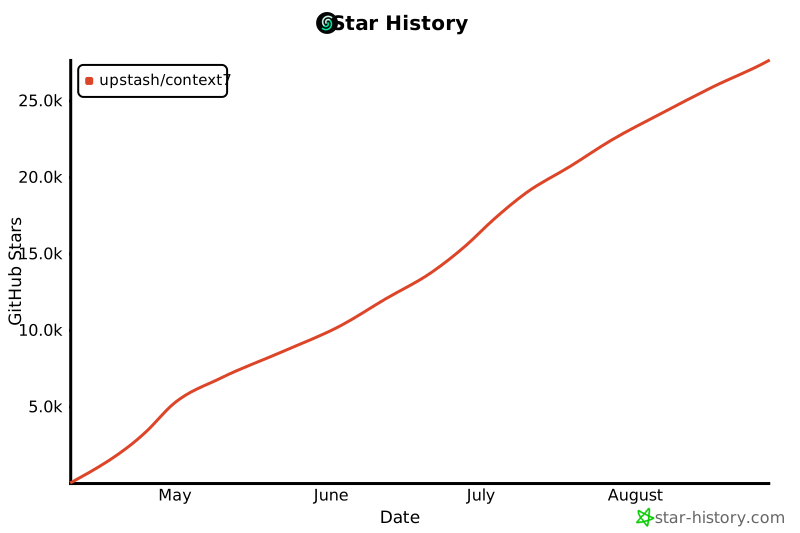](https://www.star-history.com/#upstash/context7&Date)\r\n\r\n## 📄 License\r\n\r\nMIT\r\n","readmeFilename":"README.md","_rev":"1-45652d24cb2ce76ef21f85f2ebf84108"}